Is WordPress not saving your changes?

Are you having trouble with WordPress not saving your changes? Well, I have, and it isn’t enjoyable! This post will demonstrate what you can do to prevent this. I have only noticed the saving issue since switching to the Gutenberg editor in WordPress 5+. Of course, you can use WordPress plugins to switch back to the Classic editor, but I prefer keeping up with change.
It seems the browser cache is affecting the ability to save. Not always, but certainly when it matters! So, to side-step this issue, I temporarily disabled the cache in my browser.
Herewith are the steps I followed to stop WordPress from not saving changes:
When Using Chrome
PressFirst, pressF12 key, and open the ‘Developer Tools’ window.
Next, click on the ‘Network’ tab.
Tick Finally, tick the ‘disable cache’ checkbox.
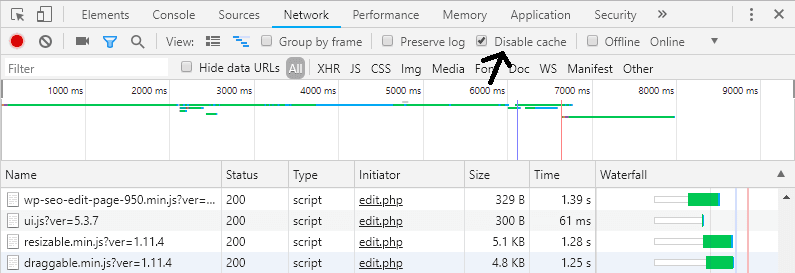
Google Chrome Developer Window
When Using Firefox
Press Control+Shift+E to open the ‘Network’ tab under the ‘Web Developer’ tools window.
Click on the ‘Disable Cache’ checkbox.
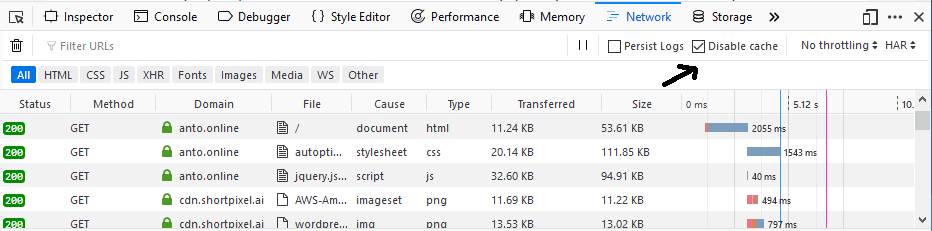
Mozilla Firefox Web Developer Window
Other causes
Check your cache plugin if your post was saved, but you do not see the latest content. Cache plugins provide a way to delete the cache. For example, WP Super Cache provides a convenient ‘Delete Cache’ link when viewing your changed post.