
Jenkins: How to manage plugins

Jenkins uses plugins extensively. Most Jenkins features are all implemented as plugins. Jenkins plugins provide features to support building, deploying, and automating any project. Believe it or not, but there are over 1800+ community-contributed Jenkins plugins available. This guide will show you how to manage Jenkins plugins.
Jenkins plugins are Java Archive (JAR) files with either an .hpi or .jpi extension. The jpi plugin gets precedence over the hpi plugin in case both are present.
Managing Plugins
You can administer plugins using the Jenkins Plugin Manager. You can easily navigate to the Jenkins Plugin Manager from Jenkins -> Manage Jenkins -> Manage Plugins. The plugin Plugin Manager will allow you to install, update, delete, enable and disable plugins.
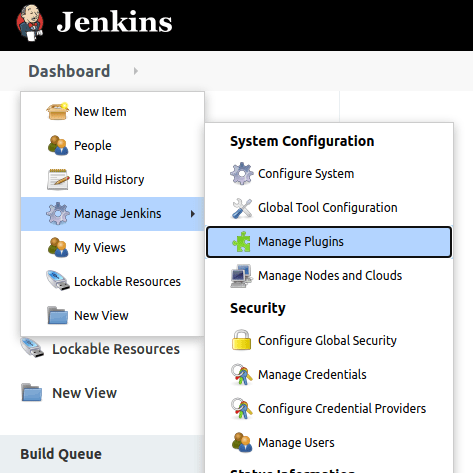
The manage plugins menu option will show a screen similar to this:
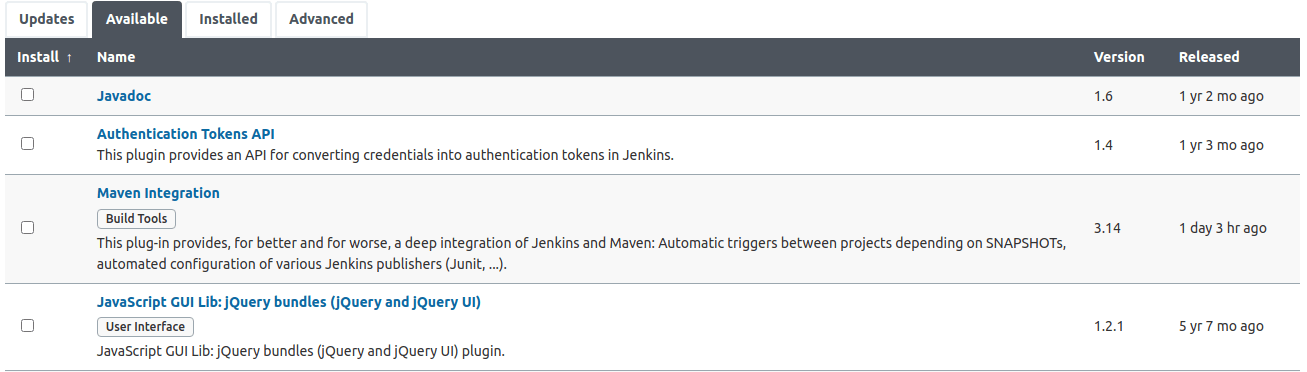
Now, let’s dive into a bit more detail for each of these tabs.
Available Plugins
The available tab under the plugin manager lists all the plugins that are available for installation.
Note that anyone can submit plugins to Jenkins, and not all plugins are good. So click on the plugin before you install it and review the issues, install count and release information before you install a plugin.
Installed Plugins
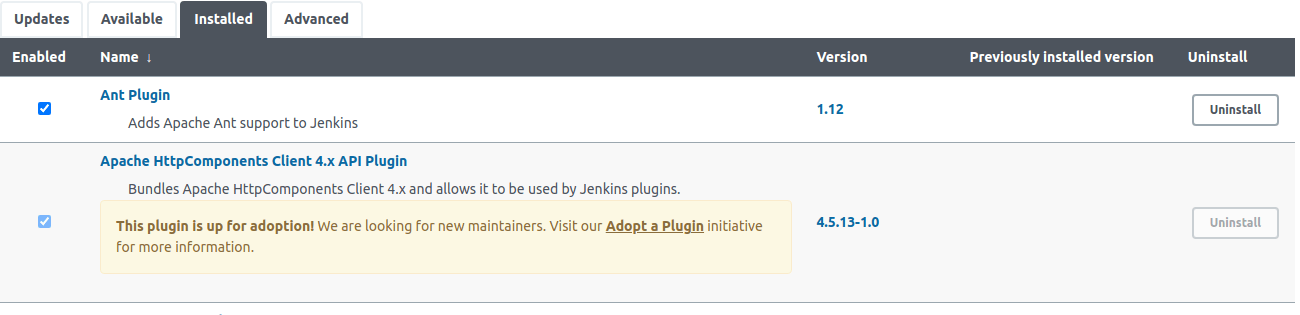
Next, you have the installed tab to see info on installed plugins, disable a plugin, or delete a plugin.
Advanced Plugin Settings
Then you can see the advanced tab, which allows you to manage the proxy configuration.
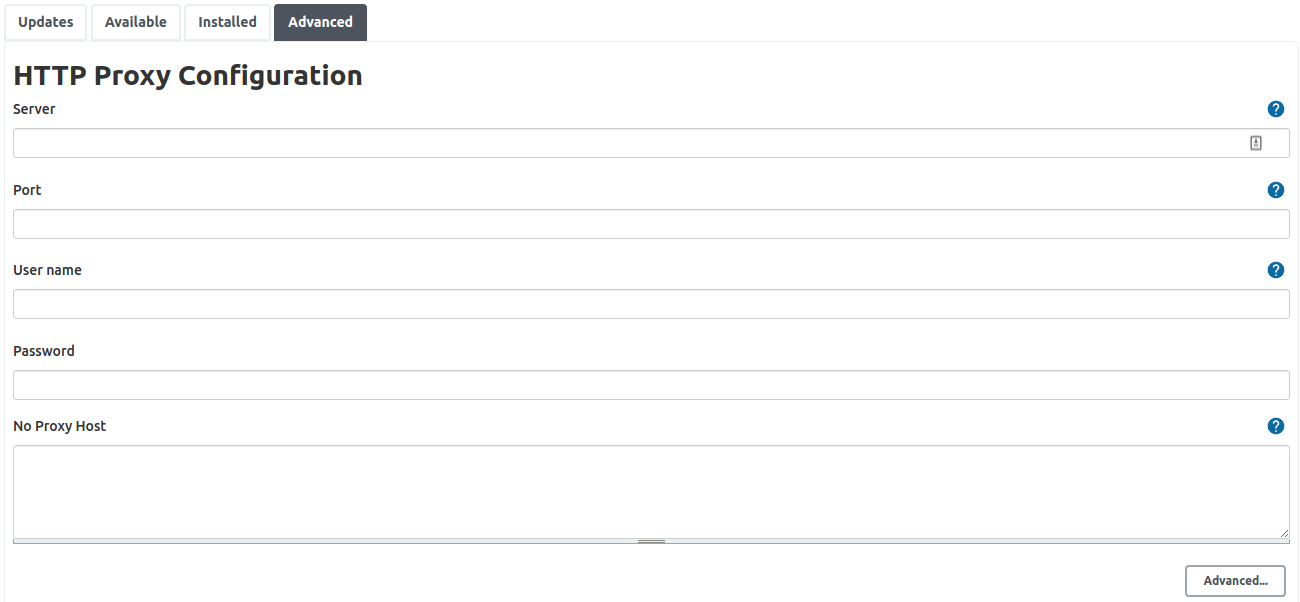
You can also set the update URL, which is by default set too:
https://updates.jenkins.io/update-center.json
Finally, you can also manually upload a plugin to Jenkins if you need to.
Update Plugins
The Updates tab lists all the installed plugins for which an update is available. It is always a good practice to update the plugins frequently.

For Docker Users
You can also install Jenkins plugins using the command line:
scudo docker exec -it <containerId> /usr/local/bin/install-plugins.sh <plugins>
Finally, you would then need to restart Jenkins using the following URL:
http://<jenkins-url>:8080/safeRestart